
Sandeep Singh Sisodiya
Webflow
April 21, 2026


Insights, ideas, and expert perspectives shared by the author on design, development, and digital growth.
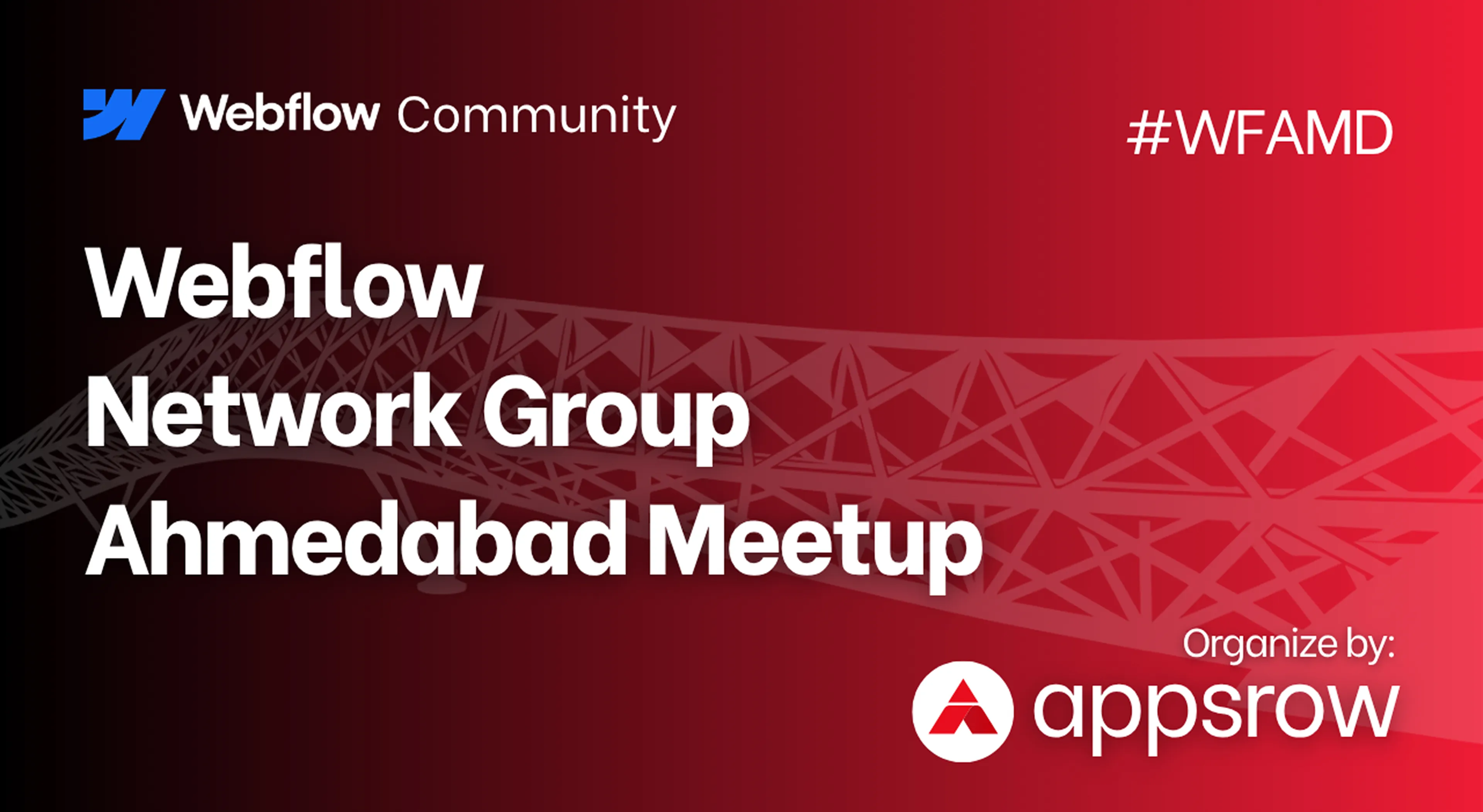
Ahmedabad's design and tech scene is about to get a lot more interesting.
On Saturday, April 25, 2026, we're throwing open the doors to the city's very first Webflow Meetup. It's a morning built for designers, developers, freelancers, founders, and anyone curious about what's happening at the intersection of visual design and no-code development.
If you've ever wondered what Webflow really is, why agencies across the world are betting big on it, or how it's quietly becoming the go-to platform for teams that want fast, beautiful, conversion-ready websites, this meetup is for you.
Here's everything you need to know.
Ahmedabad has always been a city of builders. From manufacturing to startups to design studios, something is always being made here. But when it comes to the global web design conversation, the one happening in Webflow communities across New York, London, Berlin, and Bangalore, Ahmedabad hasn't quite had its seat at the table yet.
We want to change that.
At Approw, we've spent years working as a Webflow Premium Partner, building websites for brands across the globe. We've seen firsthand how Webflow has transformed the way businesses launch, scale, and market online. We've also seen how much talent exists right here in our own backyard, often without access to the communities and conversations that could 10x their careers.
This meetup is our way of starting that conversation. Locally. In person. Over coffee.
For the uninitiated, Webflow is a visual web development platform that lets you design, build, and launch fully responsive, production-grade websites without writing traditional code. Think of it as the creative power of a designer's tool combined with the structural control of clean, professional code.
It's the reason a solo freelancer can now deliver agency-quality websites. It's the reason founders can ship landing pages in hours instead of weeks. It's the reason agencies are scaling client work faster than ever before.
And it's a skill that's quickly becoming one of the most in-demand in the digital product world.
This isn't a conference. There's no stage, no keynote, no sales pitch. It's a community-first gathering designed around the one thing that actually matters at events like these: meaningful conversations.
Here's what the morning will look like.
Real stories from real practitioners. Hear from people who are actively building on Webflow, including freelancers, agency owners, and product teams, about what's working, what's not, and where the platform is heading.
Hands-on insights. Whether you're wondering how to pitch Webflow to a client, how to structure a CMS for scale, or how to transition from Figma to Webflow without losing your mind, you'll walk away with practical takeaways.
Connections that last. The best part of any meetup isn't the content. It's the people you meet. We're keeping the group intimate so you actually get to have real conversations, not just collect business cards.
Coffee. Good coffee. Because no meetup is complete without it.
We built this meetup for a wide range of folks, because the Webflow ecosystem touches all of them.
Web designers who are curious about going no-code and want to see what's possible. Developers exploring visual development workflows and wondering if the hype is real. Freelancers looking to level up their client offerings and charge more confidently. Agency owners scaling with Webflow and wanting to compare notes with peers. Founders and marketers who want better websites, faster, without the usual engineering bottlenecks. And students or aspiring creators ready to break into the design and tech industry.
If any of that sounds like you, you belong in the room.
Date: Saturday, April 25, 2026 Time: 10:00 AM to 12:00 PM IST Venue: DevX Coworking, 2nd Floor, BINORI B SQUARE-3, Sindhu Bhavan Marg, Bodakdev, Ahmedabad 380059 Entry: Free (but seats are limited)
Parking is easy, and you'll find Approw Webflow Meetup signage on the 2nd floor to guide you in.
Sandeepsingh Sisodiya is the Co-founder of Approw and a long-time Webflow Premium Partner. Sandeep has spent years helping global brands ship high-performing websites and has been watching the Webflow ecosystem grow from a niche tool into a global movement.
Parth Parmar is our co-organizer and a Webflow Community Builder, passionate about bringing the no-code movement to Ahmedabad and creating spaces where creators can connect.
Together, they're bringing the energy of the global Webflow community to Ahmedabad for the very first time.
Is the event really free? Yes, completely. We just ask that you register so we know how many seats and cups of coffee to plan for.
Do I need to already know Webflow? Not even a little. Whether you've never opened the Webflow Designer or you're shipping client sites every week, you're welcome here.
Will there be food? Light refreshments and coffee, yes. Come hungry for conversation.
Can I bring a friend? Please do. Just have them register separately so we have an accurate headcount.
Every design community, every tech scene, every creative movement starts the same way. A few people in a room, sharing what they know, building what they care about, and choosing to show up for each other.
That's what this meetup is. A first step. A beginning.
If you've been waiting for a sign to get more involved in the Webflow world, or just want to meet other people in Ahmedabad who care about great design and smart web building, this is it.
Seats are limited and filling fast.
See you on April 25th.
Approw is a Webflow Premium Partner helping brands around the world design, build, and scale high-performing websites. Learn more about us at approw.com.
Website speed isn't just a technical metric; it's the invisible force that determines whether your visitors stay or leave within seconds. In today's digital landscape, where attention spans are measured in milliseconds, a slow-loading website is essentially turning away potential customers at your digital doorstep.
Webflow has revolutionized how designers and developers build websites, offering unprecedented creative freedom without sacrificing performance. However, even the most beautifully designed Webflow site can suffer from sluggish loading times if not properly optimized. The good news? Speed optimization doesn't require you to compromise on design aesthetics or functionality.
This comprehensive guide walks you through 25 proven techniques to supercharge your Webflow website's performance. Whether you're running an e-commerce store, a portfolio site, or a business landing page, these strategies will help you deliver lightning-fast experiences that keep visitors engaged and search engines happy.
At Appsrow, we've optimized hundreds of Webflow websites, consistently achieving load times under 2 seconds while maintaining stunning visual experiences. Our expertise in Webflow development and performance optimization has helped businesses increase conversion rates by up to 40% simply by implementing these speed enhancement techniques.
Before diving into specific optimization techniques, it's essential to understand what affects your Webflow site's loading speed. The primary factors include image sizes, custom code weight, interaction complexity, third-party integrations, and hosting configuration. Each element adds to your site's total page weight and processing time.
Google's Core Web Vitals have become critical ranking factors, making speed optimization more important than ever. These metrics measure Largest Contentful Paint (LCP), First Input Delay (FID), and Cumulative Layout Shift (CLS). Your Webflow site needs to excel in all three areas to rank well and provide excellent user experiences.
WebP images offer 25-35% smaller file sizes compared to JPEG and PNG formats without noticeable quality loss. Webflow automatically generates WebP versions of uploaded images, but you need to ensure your original uploads are already optimized. Before uploading to Webflow, compress your images using tools like TinyPNG or ImageOptim. For comprehensive guidance, check out our image optimization best practices.
Never upload images larger than they'll be displayed. If an image will be shown at 800px width maximum, don't upload a 4000px version. Use Webflow's responsive image settings to specify different sizes for different breakpoints, ensuring mobile users don't download desktop-sized images.
Webflow's native lazy loading feature defers loading images until they're about to enter the viewport. Enable this for all below-the-fold images to dramatically reduce initial page load times. This technique is particularly effective for long-scrolling pages and image-heavy portfolios.
Background images often go overlooked in optimization efforts. Export them at the exact dimensions needed, compress them aggressively, and consider using CSS gradients or solid colors where possible. For hero sections, balance visual impact with file size by finding the sweet spot between quality and compression.
Scalable Vector Graphics (SVGs) are resolution-independent and typically much smaller than raster images. Replace icon fonts and PNG icons with SVG versions. Webflow makes it easy to embed SVGs directly into your design, reducing HTTP requests and improving rendering speed.
Every line of custom CSS and JavaScript adds to your page weight. Audit your custom code regularly and remove anything unnecessary. Often, Webflow's native interactions can replace complex JavaScript, reducing dependencies and improving performance.
Move non-essential JavaScript to load after the initial page render. Use the async or defer attributes for third-party scripts that aren't needed immediately. This prevents JavaScript from blocking the rendering of your page content.
While Webflow automatically minifies your generated CSS, custom CSS should also be optimized. Remove duplicate selectors, combine similar styles, and eliminate unused CSS rules. Tools like PurgeCSS can help identify and remove dead code.
Web fonts can significantly impact loading times. Limit yourself to 2-3 font families maximum, and only load the weights and styles you actually use. Implement font-display: swap to prevent invisible text during font loading, and consider using system fonts for body text.
Interactions add JavaScript to your pages. Audit your site regularly to remove unused or redundant interactions. Complex interactions should be used sparingly and only where they genuinely enhance user experience.
Webflow automatically serves your site through a global Content Delivery Network (CDN), but you need to ensure you're using a custom domain to fully benefit from this. The CDN caches static assets and serves them from locations closest to your visitors.
Configure browser caching for static resources to reduce repeat visit load times. While Webflow handles most caching automatically, you can optimize cache headers for custom assets through Webflow's hosting settings or by using Cloudflare.
Webflow enables Gzip compression by default, but verify it's working correctly using tools like GTmetrix or Google PageSpeed Insights. Gzip can reduce HTML, CSS, and JavaScript file sizes by 70-90%, dramatically improving transfer times.
Use resource hints like preload, prefetch, and preconnect to help browsers prioritize critical resources. Preload your hero image, key fonts, and above-the-fold CSS to improve perceived performance and LCP scores.
Every analytics tool, chatbot, and tracking pixel adds weight to your pages. Conduct a quarterly audit of all third-party integrations and remove anything that's no longer essential. Consider using Google Tag Manager to load scripts more efficiently.
YouTube videos, social media feeds, and maps can dramatically slow down your pages. Implement facade loading, where a lightweight placeholder loads initially and the full embed loads only when users interact with it.
Heavy form builders can add significant overhead. If you're using third-party form solutions, ensure they're loading asynchronously. Better yet, use Webflow's native forms when possible, which are optimized for performance.
Consider switching from heavy analytics platforms to lighter alternatives. Plausible, Fathom, or Simple Analytics offer essential metrics with minimal performance impact compared to Google Analytics.
Displaying large numbers of CMS items on a single page increases load time significantly. Implement pagination or 'load more' functionality to initially display 6-12 items, then load additional content on demand. Learn more about our Webflow CMS solutions.
Create image optimization guidelines for content creators. Establish maximum file sizes and dimensions for each CMS image field, and train team members to compress images before uploading.
Client-side filtering requires loading all items before filtering, which can slow down pages with large collections. For better performance, implement server-side filtering or limit the total number of items loaded initially.
Over 60% of web traffic comes from mobile devices, yet many sites are optimized primarily for desktop. Use Webflow's responsive design features to create truly mobile-first experiences, hiding non-essential elements on smaller screens.
Mobile users often have slower connections. Use Webflow's responsive image settings to serve significantly smaller images to mobile devices. A hero image that's 1920px on desktop might only need to be 600px on mobile.
Complex animations and interactions that work well on desktop can cause performance issues on mobile devices. Test all interactions on actual mobile devices and simplify or disable resource-intensive effects for smaller screens.
Speed optimization isn't a one-time task. Use tools like Google PageSpeed Insights, GTmetrix, and WebPageTest to regularly monitor your site's performance. Set up automated monitoring to alert you when performance degrades.
Create a testing routine: measure performance before making changes, implement optimizations, then measure again. This data-driven approach helps you identify which techniques provide the most significant improvements for your specific site.
At Appsrow, we've developed a proprietary Webflow optimization framework that has helped businesses across industries achieve sub-2-second load times while maintaining gorgeous, feature-rich websites. Our team specializes in comprehensive performance audits, identifying bottlenecks that most agencies miss.
We don't just apply generic optimization techniques; we analyze your specific use case, audience, and business goals to create customized performance strategies. Our Webflow experts understand the platform's architecture at a deep level, allowing us to implement optimizations that preserve design integrity while maximizing speed.
Our typical optimization projects result in 50-70% faster load times, improved Core Web Vitals scores, and measurable increases in conversion rates. We work with businesses ranging from startups to enterprise organizations, bringing the same level of expertise and attention to detail to every project. Explore our case studies to see real results.
If you're considering migrating to Webflow from another platform, we can ensure your new site launches with optimal performance from day one. Our migration process includes comprehensive speed optimization as a standard component.
Website speed optimization is no longer optional; it's a fundamental requirement for online success. The 25 techniques outlined in this guide provide a comprehensive roadmap for transforming your Webflow site from sluggish to lightning-fast. The beauty of these strategies is that they're cumulative; each improvement builds upon the others, creating compound performance gains.
Start with the quick wins like image optimization and lazy loading, then progress to more advanced techniques like code splitting and resource prioritization. Remember that optimization is an ongoing process, not a destination. As your site grows and evolves, maintain vigilance about performance through regular monitoring and testing.
The investment you make in speed optimization pays dividends through improved search rankings, higher engagement rates, better conversion performance, and enhanced user satisfaction. In an increasingly competitive digital landscape, a fast-loading website isn't just a technical achievement; it's a strategic business advantage that sets you apart from competitors still struggling with slow, bloated pages.
Your visitors won't remember every detail of your site's design, but they'll definitely remember how quickly it loaded and how smoothly it performed. Give them that exceptional experience, and they'll reward you with their attention, trust, and business.
Ready to optimize your Webflow website? Contact our team today to discuss how we can help you achieve exceptional performance and user experience.
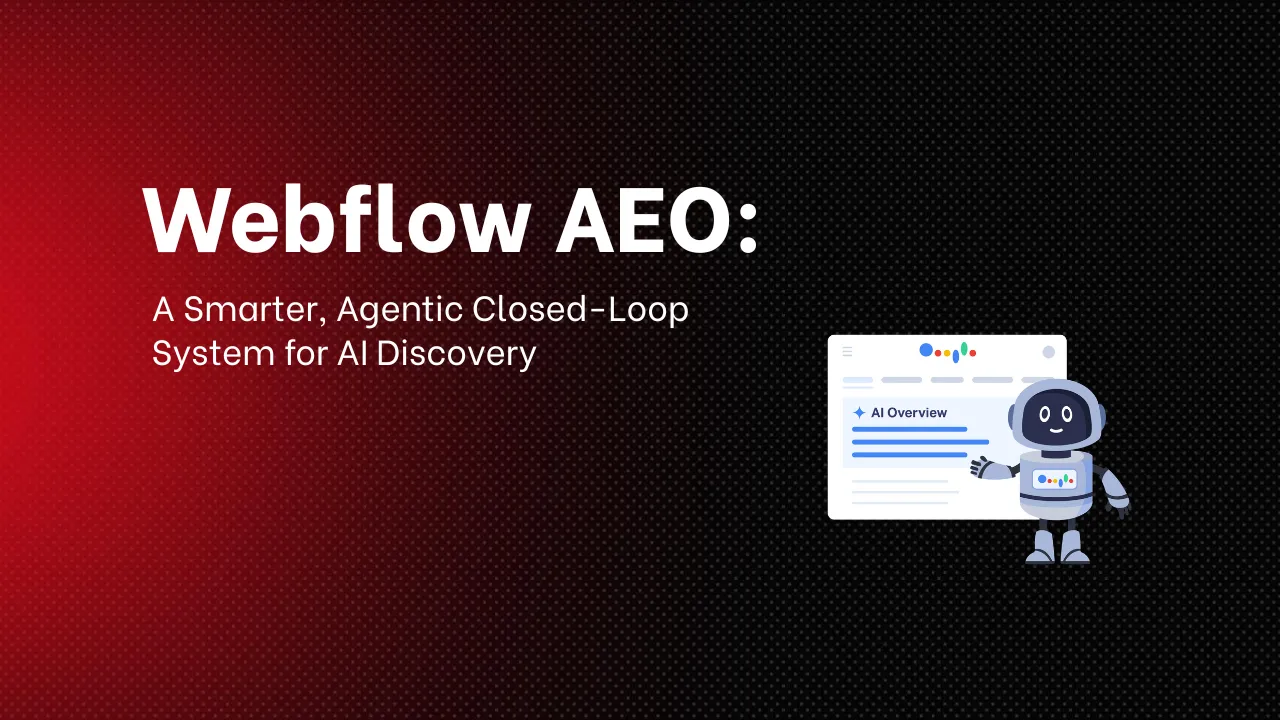
The way people discover brands online is going through a fundamental transformation. Search engines are no longer the only gateway to your business. AI powered answer engines like ChatGPT, Perplexity, Google AI Overviews, and others are now actively shaping how buyers perceive, evaluate, and choose brands long before they ever visit a website. The question is no longer whether your site ranks on page one of Google. The real question is whether AI systems mention your brand when someone asks a question that matters to your business.
This shift has created an entirely new discipline called Answer Engine Optimization, or AEO. And while most marketing teams recognize its importance, very few have the tools, expertise, or workflow to act on it effectively. That is exactly the problem Webflow set out to solve with the launch of Webflow AEO, a groundbreaking agentic system that brings measurement, recommendations, and execution into a single closed loop.
As a Webflow Premium Partner, AppsRow has been at the forefront of helping businesses build high performing websites on Webflow. With the arrival of Webflow AEO, we are now positioned to help our clients not just build beautiful websites but ensure those websites are discovered, cited, and trusted by the AI systems that increasingly influence buying decisions.
Webflow AEO is an agentic, unified solution built natively into the Webflow platform. It brings together three critical capabilities that most teams currently manage through disconnected tools and fragmented workflows.
Measure your AI visibility by understanding how often your brand appears in answer engine responses, which prompts trigger your brand’s mention, and how AI driven discovery connects to actual on site engagement and conversions.
Recommend on brand improvements through AI agents that surface prioritized, brand specific recommendations across both technical and content optimization. These recommendations cover everything from broken links and outdated metadata to entirely new content opportunities that could boost your citation rates.
Act in a closed loop where those same agents help teams implement recommendations across their entire site at scale. Built in review before publish safeguards ensure teams can move fast without losing control over quality or brand consistency.
This is not just another analytics dashboard or SEO audit tool. Webflow AEO is designed as a complete system where insights flow directly into action, and action feeds back into measurement. It is the kind of operational tool that marketing teams have been waiting for.
For years, digital marketing teams have focused on traditional SEO to drive organic traffic. But the landscape is shifting rapidly. AI answer engines are now responding to user queries with direct, synthesized answers that may or may not include links to your website. If your brand is not part of those answers, you are invisible to a growing segment of your audience.
The challenge for most teams is threefold. First, the AEO discipline is still evolving, and best practices change frequently. Second, specialized expertise in AEO is scarce, making it difficult to build in house capabilities quickly. Third, even teams that understand what needs to be done often lack a scalable way to execute across their entire website.
Webflow AEO addresses all three of these challenges by embedding measurement, intelligence, and execution directly into the platform where your site is built and managed.
Webflow AEO expands the existing Webflow Analyze platform with dedicated AEO analytics designed for clarity rather than complexity. No data science background or heavy instrumentation is required.
Prompt Insights allow teams to see how their brand appears for the prompts and topics that matter most to their business. Teams can track whether their brand is being mentioned, how frequently their site is cited, and how they compare against other sources included in AI generated answers. Over time, teams can refine the prompts they track to build a clearer picture of where they are gaining ground and where opportunities remain.
AI Bot Insights provide visibility into which AI bots are visiting your site, which pages they are crawling and prioritizing, and how that activity changes over time. Not all bot activity is equal. Some bots serve live user queries while others train models or index content for AI systems. Understanding this distinction helps teams make smarter decisions about content strategy and technical optimization.
Holistic AI Discovery Dashboard brings prompt data, citation metrics, bot activity, and visitor behavior into one centralized view. Teams can see how visitors arriving from answer engines engage and convert on their site, connecting AI visibility directly to real business outcomes.
Understanding your AI visibility is only the first step. The real competitive advantage comes from acting on those insights quickly and consistently. Webflow AEO agents are built to help teams do exactly that.
Brand Aware by Default: Because the agents are native to Webflow, they can draw from your site’s structure and content directly. Brand context settings allow teams to guide the agents with details about voice, positioning, terminology, and competitive landscape, ensuring every recommendation stays true to your brand.
Technical AEO Agents go beyond basic SEO audits to improve your site’s machine readability at scale. They evaluate pages, CMS items, components, and images to surface a growing set of technical issues that impact AI discoverability. From broken links and stale schema markup to overly long meta descriptions and missing alt text, these agents identify problems and prepare fixes in a centralized view where teams can review, accept, modify, or dismiss changes efficiently.
Content Optimization Agents help teams create and improve content that is more likely to be discovered, understood, and cited by answer engines. Guided by the prompts teams are already tracking, these agents can strengthen existing pages for freshness, clarity, and citation potential. They can also recommend entirely new content pieces and generate strong first drafts that teams can refine and publish faster.
Webflow AEO did not appear overnight. It builds on a full year of investment in AEO education and foundational tooling. Webflow has progressively released capabilities including its widely adopted AEO maturity model and assessment, support for llms.txt and Markdown for agents, LLM referred traffic insights, and an AI assisted technical SEO auditing tool that helped customers achieve 75% more monthly organic traffic. Webflow AEO is the culmination of all that work, purpose built for marketing teams ready to measure, execute, and scale their AEO strategy.
Webflow AEO is currently in private beta and will be available soon to all Webflow Enterprise customers. AEO analytics will be part of an upgraded Enterprise Analyze plan, while AEO agents will be included in the Webflow Enterprise platform.
As a Webflow Premium Partner, AppsRow brings deep platform expertise and a strategic understanding of how businesses can leverage Webflow’s most advanced capabilities to drive real results. Here is how we can help your team make the most of Webflow AEO.
Our team will evaluate your current website’s readiness for AI driven discovery. We analyze your site structure, content architecture, metadata health, schema markup, and machine readability to identify the gaps that matter most.
We do not just run audits. We build and execute a comprehensive AEO strategy tailored to your brand, your industry, and the specific prompts and topics where you need to be visible. From technical optimization to content creation, we handle the full scope of work.
When Webflow AEO becomes available to your team, AppsRow will help you configure brand context settings, set up prompt tracking, interpret analytics dashboards, and establish workflows for reviewing and publishing agent recommendations.
AEO is not a one time project. The landscape evolves constantly, and staying visible requires continuous monitoring, optimization, and content development. Our team provides ongoing management to ensure your brand remains at the forefront of AI driven discovery.
If your website is not yet on Webflow, AppsRow can manage the complete migration process, ensuring your new site is built from the ground up with AEO best practices embedded into every page, every component, and every piece of content.
The shift from traditional search to AI driven discovery is not a distant possibility. It is happening right now. Brands that adapt early will earn the citations, the mentions, and the trust that answer engines distribute to their users. Brands that wait will find themselves competing for visibility in a game they did not prepare for.
Webflow AEO represents a major leap forward in making answer engine optimization accessible, actionable, and scalable for marketing teams. And as a Webflow Premium Partner with hands on experience across hundreds of Webflow projects, AppsRow is uniquely positioned to help you take full advantage of this new capability.
Whether you are exploring AEO for the first time or looking to scale an existing strategy, our team is ready to help you navigate this new era of brand discovery.
Get in touch with AppsRow today to discuss how Webflow AEO can transform your brand’s AI visibility.
Search engine visibility is critical for any business that relies on organic traffic. Yet many companies using Webflow discover their websites aren't reaching their full potential in search results. One of the most overlooked causes of poor search performance is unaddressed crawl errors. When search engine bots encounter problems accessing your pages, they can't properly index your content, resulting in missed opportunities for visibility and traffic.
Webflow, as a powerful web design and hosting platform, provides excellent tools for building responsive websites. However, like any platform, it requires proper configuration to ensure search engines can crawl and index your content effectively. Whether you're managing your own Webflow website or working with a webflow development agency, understanding how to identify and fix crawl errors is essential for achieving strong search rankings.
This comprehensive guide walks you through the most common Webflow crawl errors, explains why they occur, and provides actionable solutions to improve your site's indexability and overall search engine optimization performance.
Before diving into fixes, it's important to understand what crawl errors are and why they matter. Crawl errors occur when search engine bots attempt to access pages on your website but encounter obstacles that prevent them from reading the content. These obstacles can range from broken links and server errors to misconfigured robots.txt files or excessive redirects.
The impact of crawl errors extends beyond just indexing. When search engines struggle to crawl your site efficiently, they allocate less of their crawl budget to discovering new content and fresh updates. This means your valuable pages might not be indexed at all, or updates might take significantly longer to be recognized in search results.
Webflow sites are particularly susceptible to certain types of crawl errors because of how the platform handles hosting, SSL certificates, and dynamic content. Understanding the platform-specific issues helps you address them more effectively and improve your site's search performance.
The most frequently encountered crawl errors on Webflow sites involve server response codes in the 5xx range. These indicate that the server encountered an error while processing the request. Common 5xx errors include 500 (Internal Server Error), 502 (Bad Gateway), and 503 (Service Unavailable).
When search bots receive these responses, they mark the pages as inaccessible. If this happens repeatedly, search engines will crawl those pages less frequently, reducing their chances of being indexed or re-indexed with fresh content.
To diagnose server errors, access your Google Search Console account and navigate to the Coverage report. This tool provides detailed information about which pages are experiencing server errors and when these errors occur. Additionally, use tools like Screaming Frog or SEMrush to crawl your site independently and identify problematic pages.
Redirect chains occur when one URL redirects to another URL, which in turn redirects to a third URL, creating an inefficient path to the final destination. Redirect loops happen when URL A redirects to URL B, and URL B redirects back to URL A, creating an infinite loop that prevents access to either page.
Webflow development often involves restructuring site architecture and updating URL patterns. During these transitions, redirect chains frequently develop if not carefully managed. Each redirect consumes crawl budget and slows down the process of reaching the actual content, negatively impacting both user experience and search engine crawlability.
To fix redirect chains, review your redirect rules in Webflow's project settings and ensure you're redirecting directly to the final destination rather than creating intermediate redirects.
HTTPS is now a Google ranking factor, and all Webflow sites come with free SSL certificates by default. However, certain configurations can create SSL-related crawl errors. Mixed content errors occur when your site loads resources (images, scripts, stylesheets) over HTTP when the main page uses HTTPS.
These issues prevent search engines from properly crawling and indexing your content because browsers and search engine bots block insecure resources for security reasons. Webflow typically handles SSL setup automatically, but custom code or third-party integrations sometimes introduce mixed content issues.
Your robots.txt file instructs search engines which parts of your site they should and shouldn't crawl. Misconfigured robots.txt files can accidentally block entire sections of your site from being indexed, creating unnecessary crawl errors.
Common mistakes include blocking entire directories, using overly broad rules, or accidentally blocking CSS and JavaScript files. When these files can't be accessed, search engines have difficulty rendering and understanding your content, treating many pages as having crawl errors.
Google Search Console is your primary tool for identifying crawl errors on your Webflow site. The platform provides detailed insights into how Google's bots interact with your website.
Start by accessing the Coverage report under the Indexing section. This report displays four categories: Error, Valid with warnings, Valid, and Excluded. Focus on pages with errors first, as these represent the most significant barriers to indexation.
The Coverage report shows you specific error types, the number of affected pages, and when the errors were first detected. Click on each error type to see which URLs are experiencing problems. This information is crucial for prioritizing your fixes.
The URL Inspection tool allows you to check individual pages. It shows you exactly how Google's crawler sees your page, what it rendered, and whether it encountered any issues. Use this tool to verify that your fixes are working correctly after you implement them.
When you identify server errors in Google Search Console, first check Webflow's status page to confirm that the platform isn't experiencing widespread outages. If the issue is isolated to your site, review your project settings and recent changes.
Server errors often stem from misconfigured hosting settings, SSL certificate issues, or resource conflicts. Try clearing your browser cache and accessing your site from different locations to determine if the error is persistent. If the error persists, contact Webflow support with details from Google Search Console, as the issue may require platform-level intervention.
Implement proper error monitoring using tools like Sentry or New Relic to catch server errors before search engines encounter them. These services alert you immediately when errors occur, allowing you to fix problems quickly.
Audit all redirects on your Webflow site systematically. Export your sitemap and check each URL to identify any redirect chains. A tool like Screaming Frog can automatically detect redirect chains and loops, saving you significant time.
Once you've identified problem redirects, update them in Webflow's project settings to point directly to the final destination. Delete any temporary redirect rules that are no longer necessary. Each unnecessary redirect wastes crawl budget, so minimize the total number of redirects on your site.
For permanent changes to your site structure, use 301 redirects rather than temporary 302 redirects. This ensures that link equity and ranking signals transfer to the new URLs, preserving your search visibility during the transition.
If you're experiencing mixed content warnings, audit your site for HTTP resources. Check your CSS files, JavaScript includes, and image sources to ensure they all use HTTPS URLs. In Webflow's designer, update any custom code that references external resources to use secure HTTPS connections.
If you've integrated third-party services, verify that they provide HTTPS endpoints. If a vendor only offers HTTP access, consider finding an alternative service that supports secure connections.
Review your robots.txt file in Webflow's SEO settings. A well-optimized robots.txt should allow access to your entire site unless you have specific pages you want to exclude. Avoid blocking CSS, JavaScript, and image resources, as these are essential for proper page rendering.
Check whether you're accidentally disallowing important directories. For example, some configurations block the /collections/ directory in dynamic sites, preventing search engines from accessing product or blog post pages. Adjust your rules to allow search engine access to all content you want indexed.
After making changes, test your robots.txt using Google Search Console's robots.txt tester tool. This ensures that your updates achieve the desired effect without unintended consequences.
Your XML sitemap serves as a roadmap for search engines to discover all your pages. In Webflow, the platform automatically generates a sitemap, but you should verify it includes all important pages and contains no broken URLs.
Access your sitemap at yoursite.com/sitemap.xml and scan it for any 404 errors or redirect chains within the sitemap itself. Remove any outdated URLs and ensure all URLs in the sitemap are accessible and not blocked by robots.txt.
Submit your sitemap to Google Search Console, and monitor it regularly for issues. Webflow updates your sitemap automatically when you publish changes, so you don't need to manually recreate it with each update.
A clear, logical site structure helps search engines discover and understand your content. Organize your Webflow site with a consistent hierarchy where important pages are only a few clicks from the homepage. Use descriptive folder and collection names that reflect your content organization.
Include breadcrumb navigation on your pages, both for user experience and SEO benefits. Breadcrumbs help search engines understand the relationship between pages and provide another path for bot discovery.
Internal links guide both users and search engine bots through your site. Each internal link provides another opportunity for search engines to discover pages and understand the structure of your content. Use descriptive anchor text that accurately describes the linked page rather than generic phrases like "click here."
Create a strategic internal linking plan that connects related content. When you publish a new blog post, link to existing posts on similar topics. Link from high-authority pages to important conversion pages to concentrate ranking signals where they matter most.
Page speed is both a ranking factor and an important aspect of crawlability. Slow loading pages consume more crawl budget because bots wait longer for pages to fully load. Webflow's hosting infrastructure is generally fast, but you can further optimize performance.
Compress images before uploading them to Webflow. Use modern image formats like WebP for faster delivery. Minimize the use of custom scripts and external resources that can slow down page loading. Run your site through Google PageSpeed Insights regularly and address the recommendations provided.
While Webflow automatically generates sitemaps, ensure you're actively submitting your sitemap to search engines. A properly formatted sitemap helps search engines find all your content quickly, reducing crawl errors related to discovery.
Include important pages in your sitemap but exclude duplicate content, outdated pages, and pages behind paywalls or login screens. Webflow's automatic sitemap generation handles most of this, but review it periodically to ensure it reflects your current site structure.
Check your Search Console account at least weekly during the first month after implementing changes, then monthly thereafter. Monitor the Coverage report for new errors and track how the number of valid pages changes over time.
The Performance report shows you which queries bring traffic from search results. If you notice important keywords aren't appearing in search results, investigate whether those pages are being crawled and indexed. Use the URL Inspection tool to check their status.
Beyond Google Search Console, conduct regular technical audits using third-party tools. SEMrush, Ahrefs, and Screaming Frog provide comprehensive crawl reports that identify issues Google Search Console might not surface.
Schedule quarterly audits to catch new errors before they impact your search visibility. Document your findings and track progress as you implement fixes. This systematic approach ensures continuous improvement to your site's technical SEO.
Monitor your indexation progress through multiple channels. In Google Search Console, track the number of pages indexed over time. Watch for sudden drops, which indicate new technical issues or unintended changes affecting crawlability.
Use the URL Inspection tool to spot check random pages across your site. This helps you verify that your fixes are working and that new problems aren't developing in other areas.
When working with a webflow development agency or managing development in house, implement practices that prevent crawl errors before they occur. These preventive measures save significant time and effort compared to fixing errors after they develop.
Use Webflow's built-in SEO settings for each page, including meta titles and descriptions that accurately describe your content. Enable the sitemap feature and ensure all important pages are included. Configure your robots.txt file deliberately rather than relying on default settings.
Test changes thoroughly in a staging environment before publishing to your live site. Use Search Console's URL Inspection tool to preview how Google will see your pages before going live. This catches issues early when they're still easy to fix.
Establish a regular maintenance schedule for your Webflow site that includes checking for new crawl errors and monitoring overall indexation health. Assign responsibility for SEO maintenance to ensure it doesn't get neglected amid other project demands.
Webflow crawl errors represent a common but fixable obstacle to search engine visibility. By understanding the types of errors that affect Webflow sites and implementing the solutions outlined in this guide, you can ensure that search engines can effectively crawl and index your content.
The path to improved search rankings starts with a healthy, crawlable website. Regular monitoring through Google Search Console, systematic diagnosis of errors, and prompt implementation of fixes create a foundation for long term organic growth. Whether you manage your Webflow site independently or work with a webflow development agency, prioritizing technical health pays dividends through improved visibility and increased organic traffic.
Take action today by accessing your Google Search Console account, reviewing your Coverage report, and implementing the fixes that address your site's specific issues. Monitor your progress over the coming weeks and months, and celebrate the improved search rankings that result from your efforts. A crawlable, well optimized Webflow site isn't just good for search engines, it's good for your users and your business success.
Webflow has fundamentally changed how startups approach web design and development. What started as a visual website builder has evolved into a full-fledged platform that can serve as the centerpiece of your entire marketing and sales infrastructure.
However, here's the reality: a beautiful Webflow website alone won't scale your SaaS business. What will scale you is a properly integrated ecosystem where your website connects seamlessly with your CRM, payment processor, analytics tools, automation platform, and customer communication systems.
In this comprehensive guide, we'll walk you through the 10 most powerful Webflow integrations for SaaS startups, explain why each one matters, provide detailed implementation guidance, and give you a phased approach to building your tech stack without overwhelming your team.
Imagine this scenario: A potential customer visits your Webflow pricing page, downloads your comparison guide, watches a demo video, and fills out a form requesting a sales call. Without proper integrations, here's what typically happens:
HubSpot is the gravitational center of most SaaS startup stacks. It's not just a CRM; it's a complete platform that combines lead management, email marketing, sales workflows, customer service, and analytics. For a Webflow-first SaaS startup, HubSpot is where all your website data should ultimately live.
The free tier of HubSpot is legitimately useful for early-stage startups. You get up to 1 million contacts, 2 users, basic automation, and critical CRM features. As you grow, paid tiers unlock more automation, advanced reporting, and additional tools.
HubSpot forms are the backbone of lead capture. Unlike Webflow's native forms, HubSpot forms come with sophisticated features:
If you're selling anything on your Webflow site (one-time purchases, recurring subscriptions, or usage-based pricing), Stripe is the gold standard. It's not just a payment processor; it's a complete payment platform with built-in support for subscriptions, invoicing, tax compliance, and advanced revenue recognition.
The simplest way to integrate Stripe is through payment links or buttons. You create a product in Stripe (e.g., Professional Plan - 99/month), and Stripe generates a link or button code that you embed on your Webflow site.
For SaaS businesses, recurring revenue is everything. Stripe subscriptions handle the complexity of recurring billing:
Webhooks are the secret sauce that connects Stripe to the rest of your tech stack. Whenever something happens in Stripe, Stripe sends a notification to your systems.
For example, you can set up webhooks to:
If HubSpot is the heart of your operation and Stripe is your payments nervous system, Zapier is the connective tissue that links everything together. Zapier connects 7000+ apps without requiring any coding.
A Zap is an automated workflow with:
Trigger: New Webflow form submission
This single Zap eliminates manual data entry and ensures your team knows about new leads immediately.
Trigger: New Stripe charge (payment.succeeded webhook)
Your entire sales pipeline automatically reflects actual revenue. No manual deal logging.
Slack has become the central nervous system of distributed teams. If your Webflow website is generating leads and opportunities, Slack is where your team learns about them in real-time, asks questions, and coordinates response.
Google Analytics 4 (GA4) represents a shift from traditional page-view tracking to event-based analytics. For SaaS, this is powerful. You don't care about how many people visit your blog. You care about how many sign up for a free trial, book a demo, or subscribe.
While Webflow's native forms are functional, Typeform's conversational approach (one question per screen) dramatically improves form completion rates. For demo-driven SaaS, this makes a huge difference.
Intercom is a customer communication platform that combines live chat, email, and help content. For SaaS, Intercom on your website means you can support and engage visitors in real-time.
For demo-driven SaaS, Calendly is essential. It embeds on your Webflow site and handles all the scheduling friction: timezone conversion, availability checking, and reminder emails.
Airtable is a database that's easier to use than a spreadsheet but more powerful. For SaaS, Airtable can power dynamic website content that changes without requiring a developer.
As your SaaS grows, data becomes scattered. Segment centralizes all customer data and makes it available to every tool in your stack, eliminating silos and enabling sophisticated personalization.
Don't implement 10 integrations at once. Use this phased approach:
HubSpot (CRM) + Stripe (Payments) + GA4 (Analytics) + Slack (Notifications)
These four tools handle 80% of what most SaaS startups need. Get comfortable with them before adding more.
Calendly (Scheduling) + Typeform (Forms) + Intercom (Support) + Zapier (Automation)
These optimize conversion and customer engagement.
Airtable (Content Management) + Segment (Data Infrastructure)
Inconsistent data (capitalization, formatting) breaks automation. Define exact field names and formats upfront. Document in a shared sheet.
Live automation mistakes affect real customers and data. Use test environments. Make test submissions. Verify data flows correctly.
Silent integration failures mean missed leads and lost revenue. Check Zapier task history weekly. Set up alerts for failed syncs.
Undocumented setups are impossible to troubleshoot. Create a runbook: which integrations are active, data flow diagrams, where API keys are stored.
GDPR and CCPA violations result in fines. Ensure all integrations have data processing agreements. Obtain proper consent for tracking.
If someone leaves and their email is tied to integrations, you lose access. Create company emails for all integrations (ops@, tools@, etc.).
Track: Zap task volume, cost per lead, conversion rate. Quarterly review with team. Know which integrations drive value.
Result: Your team is overwhelmed. They don't know how to use each tool. Data is inconsistent.
Solution: Follow the phased roadmap. Install one integration per week. Document each step.
You set up a Zap but forget to map critical fields. Data goes to the wrong place or gets lost.
Solution: Document your field mappings before creating Zaps. Create a shared spreadsheet. Double-check before going live.
A Zap fails without notifying anyone. Five days later, your sales team asks why they haven't gotten leads.
Solution: Configure Zapier to send failed task notifications. Check task history weekly. Set up Slack alerts for failures.
Only you know how integrations work. Then you leave, and no one understands the setup.
Solution: Create a tech stack runbook. Document every integration: what it does, how it works, where API keys are stored. Update quarterly.
The difference between a SaaS startup that thrives and one that struggles often comes down to integration maturity. The best-integrated teams automate repetitive work, eliminate data silos, respond to opportunities instantly, and make decisions based on complete information.
Your Webflow website isn't just a brochure. With proper integrations, it's a sophisticated system that captures leads, qualifies them, nurtures them, converts them, and hands them off to your product team for onboarding.
Start with the foundation: HubSpot, Stripe, Google Analytics, and Slack. Spend a month getting comfortable with them. Then add Calendly, Typeform, and Intercom to optimize conversion. Finally, implement Airtable and Segment as you scale.
Remember: integrations aren't about having the most tools. They're about creating a system where tools talk to each other seamlessly, data flows accurately, and your team can focus on what matters: building a great product and growing your business.
The startups that scale aren't the ones with the most elegant Webflow sites. They're the ones with the best data infrastructure. Build yours today.
You have a vision. Your startup has momentum, your idea is ready to meet the world, and the one thing standing between you and your first wave of customers is a website that actually works. Not just something that looks passable on a laptop screen, but a polished, fast, conversion-focused digital presence that can grow alongside your business without constant firefighting. You have landed on Webflow as your platform of choice, and for good reason. But now you face a decision that trips up nearly every founder at this exact stage: should you work with a freelancer, or should you bring in a dedicated webflow development agency?
This is not a trivial question. The wrong call can cost you weeks of delays, thousands of dollars in revisions, or a website that simply does not perform the way your business needs it to. Get it right, and you have a strategic asset that generates leads, builds trust, and scales with you. This guide breaks down every angle of this decision with honesty, clarity, and the kind of practical insight that only comes from understanding how early-stage startups actually operate.
Before diving into the comparison, it is worth acknowledging that this is not a question with a single right answer. The best choice for your startup depends on factors unique to your situation: your budget, your timeline, your technical comfort level, the complexity of what you are building, and how much ongoing support you expect to need. What follows is a structured exploration of both options, covering cost, quality, communication, scalability, risk, and everything in between.
When we talk about a freelancer in the Webflow space, we are typically talking about an independent designer or developer who works with clients on a project-by-project or retainer basis. They are often solo operators who have carved out a niche for themselves building websites on Webflow, and many of them are genuinely exceptional at what they do. They bring agility, personal attention, and often competitive pricing to the table.
A Webflow agency, on the other hand, is a structured team of professionals who operate with established processes, specialized roles, and a collective body of expertise. Agencies typically have dedicated designers, developers, copywriters, strategists, and project managers working together under one roof, all contributing to a final product that reflects multiple layers of skill and review.
Neither option is universally superior. But understanding the structural differences between the two is the starting point for making a smart decision. A freelancer is a person. An agency is a system. And depending on where your startup is right now, one of those things is going to serve you far better than the other.
Let us start with the number that every founder is watching most closely: the price tag. In general terms, freelancers tend to cost less upfront than agencies, and that gap can be significant. A skilled Webflow freelancer might charge anywhere from a few thousand dollars for a simple marketing site to fifteen or twenty thousand for a more complex build with custom interactions and CMS integration. Rates vary enormously depending on experience, location, and the scope of work.
Agencies operate with higher overheads because they are employing entire teams, investing in tooling, and maintaining the infrastructure required to serve multiple clients at a high level simultaneously. Their pricing reflects this reality. A quality Webflow agency might quote anywhere from ten thousand to well over a hundred thousand dollars depending on the scale and complexity of the engagement. The lower end of that range typically covers a solid marketing website, while the higher end involves complex web applications, multi-language setups, e-commerce integrations, or long-term partnerships.
However, the sticker price is only part of the financial picture. Startups routinely underestimate the true cost of going with the cheapest option. If a freelancer underestimates a project, runs into technical challenges beyond their skill level, or disappears mid-build, the cost of finding someone to finish the work and untangle the mess can easily exceed what a more expensive option would have cost upfront. Budget conversations should always include a realistic accounting of risk, not just the invoice you are expecting to receive.
For early-stage startups with tight capital and a clear, well-scoped project, a capable freelancer often represents excellent value. For startups that are raising or have raised funding and need a professional-grade deliverable with accountability built in, an agency frequently justifies the premium.
Time is one of the most undervalued resources in the startup world. A delayed launch is not just a scheduling inconvenience. It can mean missing a product hunt window, launching after a competitor, or presenting an unfinished site to investors who were already on the fence. How quickly can each type of partner actually deliver?
Freelancers can sometimes move very fast, especially if they are immediately available and the project is well-defined. Without the overhead of agency process, a freelancer can sometimes spin up a basic site in a matter of days. However, freelancers are often juggling multiple clients simultaneously, and if your project lands at a busy moment, timelines can stretch in ways that are difficult to predict. There is also no backup if they get sick, face a personal emergency, or simply take on more than they can handle.
Agencies typically operate on more predictable timelines because they have structured project management, dedicated resources, and the capacity to distribute work across team members. When one person is blocked, another can step in. This consistency is worth a great deal when your launch date is not negotiable. Agencies also tend to have more rigorous scoping processes upfront, which reduces the likelihood of scope creep derailing your timeline mid-project.
If you need something live in two weeks and the scope is minimal, a freelancer is often the only realistic option. If you have a month or more and the project is substantial, an agency's structure becomes a meaningful advantage.
Quality is where the differences between freelancers and agencies become most pronounced, though perhaps not in the way you might expect. There are extraordinary freelancers who produce work that rivals or surpasses anything an agency could deliver. There are also mediocre agencies staffed by junior talent. The category itself does not guarantee quality. But the structural factors within each model create tendencies worth understanding.
Freelancers are often strong specialists. A freelancer who focuses exclusively on Webflow design might have an incredibly refined aesthetic sensibility and deep platform knowledge. But most startup websites are not purely a design challenge. They require strategic thinking about conversion, copywriting that actually communicates value, SEO structure that helps people find you, performance optimization, accessibility compliance, and sometimes custom integrations with CRMs, marketing tools, or analytics platforms. A single person is rarely equally strong across all of these dimensions.
Agencies are built for exactly this kind of multidisciplinary challenge. When you hire webflow developers through an agency, you are not just getting someone who can build pages. You are accessing a team where each person brings focused expertise to their area of the project. The designer is thinking about visual hierarchy and brand expression. The developer is thinking about interactions, performance, and code quality. The strategist is thinking about how the site will drive business outcomes. This collaborative depth often shows in the final product in ways that are difficult to achieve when one person is responsible for everything.
For a simple brochure site, this extra depth may be more than you need. For a site that is intended to be a core growth engine, the difference in quality can be substantial.
The working relationship between a startup founder and their web partner matters more than most people anticipate at the outset. Building a website involves hundreds of small decisions, creative back-and-forth, feedback loops, and moments of ambiguity that require both parties to communicate clearly and work through challenges together. The quality of that communication can make or break the experience regardless of technical skill.
With a freelancer, the communication is direct and personal. You are talking to the person who is actually building your site, which means there is no translation layer between your feedback and the person implementing it. Many founders find this intimacy refreshing and efficient. You can have a genuine conversation about trade-offs, and the freelancer often develops a real understanding of your brand and vision that a larger team might struggle to replicate.
Agencies introduce more structure into the communication process, which is both a strength and a potential friction point. You will likely have a dedicated account manager or project lead who coordinates your feedback and manages the team internally. This person becomes your primary point of contact, and the quality of your experience often hinges on how good they are at their job. When this works well, it means your time is protected, your feedback is actioned without you having to manage the details, and the project moves forward with professional momentum. When it works poorly, it can feel like your voice is getting lost in a bureaucratic handoff process.
The honest takeaway here is that individual personalities and work styles matter enormously. A great freelancer who communicates proactively and manages client relationships with care will consistently outperform a disorganized agency. Do not rely solely on the category. Evaluate the specific people you are considering working with.
Launch day is not the finish line. For a startup, it is often the beginning of the real work. You will want to run A/B tests on landing pages. You will need to add blog content, update pricing pages, create new campaign pages, integrate new tools, and respond to what the data is telling you about user behavior. The question of who supports all of this post-launch activity is critically important and often overlooked during the vendor selection process.
Freelancers vary enormously in how they handle ongoing work. Some are happy to maintain long-term retainer relationships and remain deeply engaged with your site. Others prefer to complete a project and move on, making themselves available only occasionally for small updates. If you build your site with a freelancer who then becomes unavailable, you can find yourself in an awkward position where you either need to learn Webflow yourself or bring in a new person who needs time to understand the existing build before they can work on it effectively.
Agencies are generally better positioned to provide structured, ongoing support because their business model is built around long-term client relationships. Many agencies offer retainer packages that give you a predictable allocation of hours each month for updates, new pages, and ongoing optimization. This kind of continuity, where a team that already knows your brand and build is available on demand, is genuinely valuable as your startup scales.
If you are building something you expect to grow significantly in the months following launch, the scalability question strongly favors an agency partnership. If you are building something that will remain relatively stable and you are comfortable making minor edits yourself through Webflow's editor, a freelancer may serve you just fine.
Every engagement carries risk. The question is not whether something can go wrong, but how severe the consequences are likely to be and how much protection you have built into the relationship.
The most acute risk with freelancers is disappearance or incapacitation. A freelancer who becomes ill, takes on a more lucrative project, or simply burns out mid-engagement can leave you with an unfinished site and no clear path forward. This happens more often than founders would like to believe, and it is particularly devastating when you are working against a launch deadline. Additionally, if the freelancer built the site in a way that only makes sense to them, bringing in a replacement means starting nearly from scratch on the understanding of the existing work.
Agencies carry their own risks, but they tend to be more manageable. If an individual team member leaves or becomes unavailable, the agency has the capacity to reassign the work without impacting your project significantly. Agencies also typically operate with documented processes, version-controlled code, and clear handover protocols that make transitions less painful. The organizational continuity that agencies provide is one of their most underappreciated advantages.
That said, agencies carry their own failure mode: misalignment between the account team and the delivery team. When the person selling you the project makes promises that the people building it cannot deliver, you end up with frustration, delays, and eroded trust. This is why vetting an agency means looking carefully at who actually does the work, not just who presents in the pitch meeting.
Whether you are leaning toward a freelancer or a webflow development agency, the evaluation process follows a similar logic. You want to see evidence of relevant experience, a clear process for how work gets done, transparency about how challenges are handled, and references or case studies from clients who were in a situation similar to yours.
When evaluating a freelancer, pay close attention to their portfolio and look specifically for work that resembles your project in scope and complexity. Ask them directly how they handle scope changes, what their availability looks like over the course of your project, and what happens if they are unable to complete the work due to unforeseen circumstances. A confident, clear answer to these questions is a good sign. Evasiveness or vagueness is a red flag.
When evaluating an agency, look beyond the polished credentials and ask to understand the team who will actually be working on your project. Are these senior team members or are they assigning your project to junior staff while the senior people who impressed you in the sales process move on to larger accounts? Ask about their communication cadence, how they structure feedback rounds, and what their revision policy looks like. Ask for references from clients of a similar size to yours.
In both cases, trust your read of the relationship in the early stages. The way a potential partner communicates during the proposal phase is generally a reliable preview of how they will communicate during the project itself.
Some startups find success by taking a hybrid approach that draws on the strengths of both models. This might look like hiring a freelance strategist to define the site structure and content strategy, then engaging an agency to execute the build, or working with a freelancer to build an initial version quickly and then transitioning to an agency partnership for ongoing growth and optimization.
Another version of the hybrid approach is to start with a freelancer for your first iteration, accepting that it might be a good-enough solution rather than a great one, and then reinvest in a more comprehensive agency build once you have validated your product and have more capital available. This is a pragmatic strategy for startups in the earliest stages of finding product-market fit, where getting something live quickly matters more than getting it perfect.
The key to making a hybrid approach work is clear documentation and handover protocols. If you start with a freelancer, make sure the build is clean, well-organized, and clearly documented so that a future team can work with it effectively. Messy or undocumented builds are one of the most common sources of wasted investment in the startup website space.
There are specific situations where a freelancer is genuinely the smarter choice, and recognizing those situations honestly is part of making a good decision. If your budget is under five thousand dollars, an agency is likely not a realistic option, and a good freelancer represents the best use of limited resources. If your project is clearly scoped, involves minimal complexity, and does not require deep strategic input, there is no reason to pay for services you do not need.
Freelancers also tend to excel in specific niche areas where their focused expertise can be genuinely superior to a generalist agency team. If you have a particular style direction you are pursuing or a very specific technical challenge, finding a freelancer who has done exactly that type of work many times can result in a better outcome than an agency that is adapting to something outside their usual comfort zone.
Finally, if you have the time and inclination to be a hands-on client who wants to be deeply involved in the creative and technical process, a freelancer often enables that kind of collaboration more naturally than the structured process of an agency.
The case for working with a dedicated agency grows stronger as the stakes increase. If your website is a primary revenue driver or a core part of how investors, enterprise clients, or media will evaluate your startup, the quality and professionalism that an agency delivers becomes essential rather than optional. First impressions in the digital world are made in milliseconds, and a site that looks or performs amateurishly can undermine even a brilliant product.
If your build involves significant complexity, such as advanced custom interactions, multi-lingual content, complex CMS structures, e-commerce functionality, or tight integrations with enterprise software, an agency is better equipped to handle these challenges without cutting corners or getting stuck. Complexity has a way of surfacing problems that only experienced teams have encountered and solved before.
If you are a founder or CEO who does not have time to be closely involved in the build process and needs a partner who will run the project with minimal oversight required on your end, an agency's project management capabilities become a significant value-add. Being able to focus on building your business while knowing your website is in capable, accountable hands is worth the premium for many founders at this stage.
The agency versus freelancer question ultimately comes down to a realistic assessment of what your startup needs right now, not what it might need in some hypothetical future. Here is a simple way to think about it.
If you are pre-revenue, operating on a lean budget, building something relatively simple, and have the capacity to be a hands-on client, a skilled freelancer is likely your best first step. The money you save can be reinvested into other growth activities, and the speed with which a freelancer can operate suits the fast-moving nature of the earliest startup phase.
If you are post-funding, building something with genuine complexity, going to market in a competitive space where your digital presence matters greatly, or need a dependable long-term partner who can grow with you, a webflow development agency is likely the better investment. The additional cost buys you expertise, accountability, and a structural safety net that the freelance model simply cannot replicate.
Whichever path you choose, the most important thing is to be honest with yourself about what your project actually requires and to do the work of vetting your candidates carefully. The Webflow ecosystem contains genuinely talented people at every level, from individual specialists working solo to large agencies with deep institutional knowledge. Your job is to find the right fit for your specific moment, your specific goals, and your specific working style.
The website you build right now will shape how the world first encounters your startup. Investors, potential customers, potential employees, media, and partners will all form impressions based on what they see. This is not the area to be cavalier about, and it is not the area to over-engineer either. Make a clear-eyed decision based on the evidence in front of you, find partners who genuinely understand what you are trying to build, and create a foundation that can support everything that comes next.
Whether you decide to hire webflow developers through a boutique agency or find a brilliant freelancer who becomes a long-term collaborator, the decision matters far less than the clarity and intentionality you bring to it. Know what you need, know what you are getting, and hold your partner accountable to delivering it. That is the real key to getting your Webflow site right.
He is the CEO of Appsrow and a Webflow leader based in Ahmedabad, India.
He leads strategy, growth, and overall business direction.
Yes, he actively contributes to the Webflow ecosystem in India.
SaaS, AI, and enterprise businesses.
Growth strategy, digital transformation, and conversion optimization.
By aligning website strategy with business goals and improving conversions.
From brand identity to Webflow development and marketing, we handle it all. Trusted by 300+ global startups and teams.
.webp)
.webp)
.webp)
.webp)