.webp)


.png)
October 23, 2026
12 mins read
PHP2Shell Vulnerability Explained: Why Webflow Is a Smarter Choice for Website Security

Explore appsrow with AI
Building a SaaS website is one of the most consequential decisions a software company can make. Your website is not just a digital brochure; it is the first touchpoint where potential customers form impressions, evaluate your product, and decide whether to start a free trial or walk away. The challenge for many SaaS founders and marketing teams is choosing the right platform to build on. Webflow has emerged as one of the most powerful and flexible no-code platforms for creating professional, high-converting SaaS websites without writing a single line of traditional code. It combines the visual freedom of a designer tool with the structural integrity of a developer-grade CMS, making it the go-to choice for growth-focused SaaS teams around the world.
Whether you are launching a brand-new SaaS product or redesigning an existing site to improve conversions, this guide walks you through every stage of the process. From initial planning and structuring your information architecture to designing key landing page sections, setting up a CMS blog, integrating third-party tools, and preparing your site for launch, you will find detailed, actionable advice throughout this post. This is not a surface-level overview. It is a deep dive into building a SaaS website on Webflow that actually drives signups, communicates value clearly, and scales alongside your business.
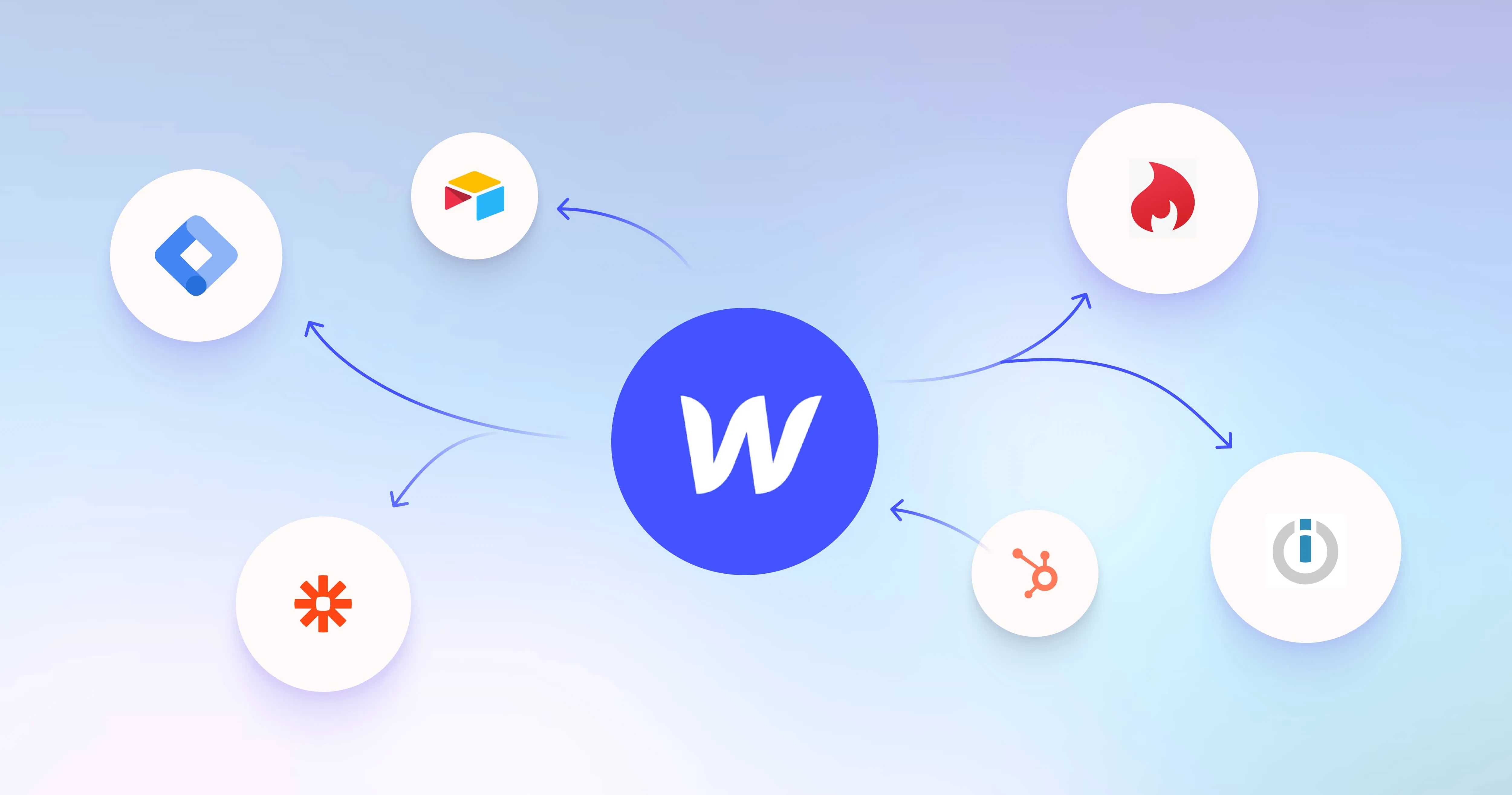
Before jumping into the how, it is worth understanding the why. Webflow sits in a unique position in the web building ecosystem. Unlike WordPress, which requires constant plugin management and developer involvement for anything beyond the basics, Webflow gives designers and marketers full control over layout, animation, interactions, and content management without ever touching code. Unlike Squarespace or Wix, Webflow generates clean, semantic HTML and CSS that meets modern SEO and performance standards.
For SaaS companies specifically, Webflow offers several critical advantages. First, it provides a visual CMS that allows marketing teams to update landing pages, blog posts, pricing sections, and customer case studies independently, without going through an engineering bottleneck. Second, Webflow supports complex animations and scroll-based interactions natively, which are essential for communicating abstract software features in an engaging way. Third, it produces fast-loading pages out of the box, which directly impacts conversion rates and search engine rankings.
Many growing SaaS companies have turned to a professional webflow development agency to handle the initial build because the platform, while accessible, has a learning curve when it comes to advanced interactions, responsive design, and CMS architecture. Working with specialists can compress timelines significantly and ensure the foundation of the site is scalable and maintainable long-term.
Every successful Webflow build starts with a clear plan. For a SaaS website, this means mapping out the pages you need, defining the user journeys you want to create, and identifying the core conversion actions you want visitors to take. Most SaaS websites share a common set of pages: a homepage, a features or product page, a pricing page, a blog or resources section, customer testimonials or case studies, an about page, and a contact or demo booking page.
Start by creating a simple sitemap. This does not need to be complex. A spreadsheet or a simple diagram showing how pages connect to each other is enough at this stage. The goal is to understand the full scope of the project before you open Webflow. Think about your buyer journey. A visitor landing on your homepage for the first time needs to immediately understand what your product does, who it is for, and why they should care. From there, they might explore features in more depth, check your pricing, and read a few case studies before deciding to sign up or book a demo.
You should also plan your CMS collections at this stage. Webflow CMS allows you to create structured content types such as blog posts, case studies, feature pages, changelog entries, and team member profiles. Define what fields each collection needs before you start building. For example, a blog post collection might include a title, author, publish date, featured image, category, and body content. Thinking this through early prevents costly restructuring later.
Once your plan is in place, open Webflow and create a new blank project. Resist the temptation to start from a template unless you are deeply familiar with how the template is structured. Templates can seem like a shortcut but often contain bloated code and structural decisions that do not fit your specific needs. Starting from a blank canvas gives you full control.
The first thing to configure in your new project is your style guide. Go to the Style Manager and define your global typography, color palette, and spacing scale. Use Webflow's global class system to create reusable styles for headings, body text, buttons, links, and containers. This ensures visual consistency across every page you build and makes future updates dramatically faster. Define your primary brand color, secondary colors, and neutrals. Set your font stack using Google Fonts or upload a custom typeface.
Next, create your global components in Webflow's component system. Your navigation bar and footer will appear on nearly every page, so build them as components that can be updated in one place and reflected everywhere. Your navigation should include your logo, main navigation links, and a clear call-to-action button such as Start Free Trial or Book a Demo. Your footer should include secondary navigation links, social media icons, a brief description of your product, and your legal pages.
The homepage is the most important page on any SaaS website. It needs to do a lot of heavy lifting in a very short amount of time. Research consistently shows that visitors make judgments about a website within seconds of landing on it, so clarity, visual hierarchy, and a compelling value proposition are non-negotiable.
Hero Section
The hero section sits above the fold and is the first thing every visitor sees. It should contain a headline that clearly states what your product does and who it helps, a subheadline that expands on the benefit, a primary call-to-action button such as Get Started for Free, and a supporting visual such as a product screenshot, dashboard mockup, or short looping animation. In Webflow, you can design this section with complete pixel-level precision and add subtle scroll-triggered animations to make the product visuals appear as the page loads.
Social Proof and Trust Signals
Immediately below the hero, include a social proof strip. This could be a row of customer logos, a trust badge from G2 or Capterra, a count of active users, or a short pull quote from a satisfied customer. Social proof reduces skepticism and increases the likelihood that a visitor will continue reading. Webflow makes it easy to build these sections with flexbox layouts and Lottie animations for logos.
Features and Benefits Section
Rather than listing features in a plain grid, use Webflow's interactions to create an engaging features showcase. A popular pattern for SaaS homepages is the sticky scroll feature section, where as the user scrolls down, each feature section animates into view while a sticky product screenshot on the other side updates to show the relevant interface. This pattern communicates complexity in a digestible, engaging way without overwhelming visitors.
The pricing page is often the most visited page on a SaaS website after the homepage, and it is where many conversion decisions are made. Getting it right requires a combination of clear structure, psychological pricing principles, and trust-building elements. In Webflow, you can build a fully custom pricing page without any limitations on layout or interactivity.
Start with a clean three-column pricing table showing your core plans. Use visual hierarchy to draw attention to your recommended plan by making it slightly larger, adding a highlighted border, or including a Most Popular badge. Each plan should clearly list what is included and use simple, jargon-free language. Webflow's grid system makes building responsive pricing tables straightforward.
Add a monthly versus annual billing toggle using Webflow's custom interactions and conditional visibility. This is a feature that many SaaS companies use to encourage annual subscriptions by showing the discounted monthly price when users select annual billing. In Webflow, you can achieve this with a custom toggle interaction that swaps text content between two sets of price labels. Below the pricing table, include an FAQ section addressing common pricing questions and a section with customer testimonials to reinforce the value at the point of decision.
Content marketing is one of the most sustainable and cost-effective growth channels for SaaS companies. A well-maintained blog drives organic search traffic, establishes authority in your niche, and nurtures potential customers throughout their buying journey. Webflow's CMS is purpose-built for this use case and gives you complete design freedom over how your content is displayed.
To set up your blog, navigate to the CMS section in Webflow and create a new Blog Posts collection. Add all the fields you need: title, author, publish date, category, tags, featured image, meta description, body content (rich text field), and a related posts reference field. Once your collection is configured, create a Collection List on your blog index page to display all posts and a Collection Template page that serves as the layout for individual blog articles.
Design your blog template page to be highly readable. Use a comfortable line length of roughly 65 to 75 characters per line, generous line spacing, and clear typographic hierarchy with distinct heading levels. Add a sticky table of contents sidebar for longer articles, a progress bar at the top of the page to show reading progress, and a related articles section at the bottom to reduce bounce rate and keep readers engaged. All of these elements can be built natively in Webflow without any external plugins.
Webflow gives you exceptional control over on-page SEO, and taking advantage of these tools is essential for driving organic growth. Every page in Webflow has its own SEO settings panel where you can set the page title tag, meta description, Open Graph image, and canonical URL. For CMS-driven pages like blog posts, these fields are dynamically populated from your collection item data, which means you can set them once at the template level and they will auto-generate correctly for every post.
Structure your page headings correctly using proper H1, H2, and H3 hierarchy. Every page should have exactly one H1 that contains the primary keyword you are targeting. Use H2 tags for main section headings and H3 tags for sub-points within those sections. Webflow makes this easy because you explicitly choose the heading level for every heading element rather than relying on visual styling to infer hierarchy.
Page speed is a critical SEO ranking factor and also directly impacts conversion rates. Webflow generates lean, production-ready HTML and CSS without the bloat common in WordPress themes. Take additional steps to optimize images by uploading WebP format images, enabling lazy loading on images below the fold, and keeping your custom code embeds to a minimum. Use Webflow's built-in asset optimization features and connect your site to a CDN through Webflow Hosting for fast global load times.
For SaaS companies scaling their content programs, working with a webflow development agency that specializes in technical SEO and Webflow architecture can help you build a site structure that supports long-term organic growth. This includes setting up proper internal linking architecture, creating programmatic landing pages with CMS collections, and implementing schema markup for rich results in search engines.
A SaaS website cannot live in isolation. It needs to connect with your marketing stack, analytics platforms, customer support tools, and product infrastructure. Webflow supports integrations through native embeds, Zapier, Make (formerly Integromat), and direct webhook connections.
For analytics, add Google Analytics 4 and Google Tag Manager through Webflow's custom code settings. Tag Manager acts as a container that allows your marketing team to deploy tracking scripts, conversion events, heatmap tools like Hotjar or Microsoft Clarity, and A/B testing platforms like Google Optimize without requiring code changes in Webflow itself. This separation of concerns is a best practice that keeps your site lean and gives marketers the autonomy they need.
For email capture and CRM integration, Webflow's native forms can send submissions to any email address or connect to over 5,000 apps through Zapier. Connect your forms to your email marketing platform such as HubSpot, Mailchimp, or ConvertKit so that new leads are automatically added to your nurture sequences. For product demo booking, embed a Calendly or Chili Piper scheduling widget directly into your demo page using an HTML embed block.
Live chat and support integrations such as Intercom, Crisp, or Drift can be added through a single script embed in your project settings. These tools are critical for SaaS websites because they let potential customers ask questions in real time, which significantly reduces friction in the conversion process. Configure them to show proactively on high-intent pages like pricing and contact pages while staying minimized on content pages to avoid distracting readers.
A majority of web traffic now comes from mobile devices, and search engines use mobile-first indexing to determine rankings. Every page you build in Webflow must be fully responsive and look excellent on all screen sizes. Webflow's responsive design system allows you to customize layouts, font sizes, spacing, and visibility at four breakpoints: desktop, tablet, mobile landscape, and mobile portrait.
The most important principle to internalize is that styles cascade downward in Webflow. Styles set at the desktop breakpoint flow down to smaller screens unless you explicitly override them. This means you should always design desktop first, then refine at smaller breakpoints. Pay special attention to your navigation on mobile. The standard pattern is to hide the desktop nav links and replace them with a hamburger menu button that triggers a full-screen or slide-in menu. Webflow's interaction system makes this straightforward to implement without any custom JavaScript.
Test your responsive design thoroughly using Webflow's preview mode across all breakpoints and also on real devices. Common issues to watch for include text that is too small to read comfortably, touch targets that are too small for fingers, horizontal scrolling caused by elements that overflow the viewport, and images that do not scale correctly. Address each of these before moving on to the launch phase.
Before you publish your Webflow site, conduct a thorough quality assurance review. This process should cover several categories. First, review all content for spelling, grammar, and factual accuracy. Second, test all forms to confirm submissions are being received and routed to the correct destinations. Third, click every link on the site to verify there are no broken links or incorrect redirects. Fourth, check all pages on mobile, tablet, and desktop browsers including Chrome, Safari, Firefox, and Edge.
Use Webflow's built-in SEO audit tools to check for missing meta descriptions, pages without H1 tags, images without alt text, and other common on-page issues. Run your key pages through Google PageSpeed Insights to identify performance bottlenecks. Aim for a score of 90 or higher on both mobile and desktop. If you notice significant performance issues, common culprits include large unoptimized images, excessive JavaScript from third-party scripts, and render-blocking resources.
Set up Webflow's 301 redirect manager if you are migrating from an existing website. Redirecting old URLs to their new equivalents preserves your SEO equity and prevents visitors from landing on 404 error pages. Create a comprehensive redirect map listing every old URL and the corresponding new URL before launch day, then enter them into Webflow's redirect settings in bulk.
Publishing your Webflow site is as simple as clicking the Publish button, but there are a few configuration steps to complete first. Connect your custom domain through Webflow's hosting settings and configure your DNS records according to Webflow's documentation. Enable SSL for your domain to ensure your site loads over HTTPS, which is required for security, user trust, and SEO. Set up your sitemap and submit it to Google Search Console so that Google can discover and index your pages efficiently.
After launch, establish a regular maintenance routine. Review your Google Analytics and Search Console data weekly to understand which pages are performing well and which need improvement. Update your blog with fresh content on a consistent schedule, at minimum twice per month, to signal to search engines that your site is actively maintained. Monitor your Core Web Vitals scores in Search Console and address any issues that arise as you add new content and integrations.
Run conversion rate optimization experiments on your key pages using A/B testing tools. Test different headlines, call-to-action button copy, hero images, and pricing page layouts to find the combinations that drive the most signups. Small improvements in conversion rate compound significantly over time and can have a greater impact on revenue than increasing traffic alone.
Building a SaaS website in Webflow is an investment that pays dividends for years when done correctly. The platform gives you the design freedom of a custom-coded site combined with the flexibility and speed of a modern CMS, making it uniquely suited to the fast-moving world of SaaS. By following the steps outlined in this guide, including planning your structure thoughtfully, designing for conversion at every stage, setting up a powerful content hub, integrating your marketing tools, and optimizing for both SEO and performance, you will have a website that works as hard as your product does to drive growth.
The journey does not end at launch. A great SaaS website is a living asset that evolves alongside your product, your customers, and the competitive landscape. Continuously test, iterate, and improve. If you find the platform's learning curve steep or want to move faster in the initial build phase, partnering with a specialized webflow development agency can be a smart strategic move that gives you a production-ready site built on best practices from day one. Whatever path you choose, Webflow provides the tools you need to create a world-class SaaS web presence that converts visitors into loyal customers.
If your website isn't easy to understand, you're giving away opportunities
before the conversation even starts.
Get a free review of how your website appears to AI-powered search and discovery tools.
GOT QUESTIONS ?
Why is Webflow a great choice for building a SaaS website?
Webflow is ideal for SaaS websites because it combines fast performance, clean code, CMS-driven dynamic content, and seamless integrations with tools like HubSpot, Intercom, and Stripe that SaaS businesses rely on. It allows marketing teams to launch new landing pages and feature pages quickly without waiting for engineering resources. Appsrow has built Webflow websites for dozens of SaaS companies, delivering conversion-focused designs that support product-led growth.
What does a high-converting SaaS website on Webflow need?
A high-converting SaaS website on Webflow needs a clear value proposition in the hero, social proof elements like customer logos and testimonials, a frictionless pricing page, feature breakdowns, and fast-loading landing pages optimized for paid campaigns. The CMS should be structured to support a blog, case studies, and a changelog to support organic growth. Appsrow builds SaaS websites on Webflow with conversion architecture built in from the very first design decision.
What is the step-by-step process for building a SaaS website on Webflow?
Building a SaaS website on Webflow begins with defining your ICP and crafting a conversion-focused information architecture, then designing the homepage, features, pricing, and case study pages in Figma before building in Webflow using a well-structured CMS and component system. Integrating HubSpot, analytics, and live chat tools completes the full SaaS marketing site stack. Appsrow follows a proven SaaS website build process on Webflow that consistently delivers high-converting sites within four to six weeks from kickoff to launch.
How should I design the pricing page on my SaaS Webflow site?
The pricing page is typically the most important conversion page on a SaaS website and should clearly show plan tiers with feature comparisons, highlight the most popular or recommended plan, address common objections with an FAQ section, and include social proof near the pricing to reduce hesitation. In Webflow, pricing pages can be built in CMS to allow easy plan updates without touching the design. Appsrow designs SaaS pricing pages on Webflow that are conversion-optimized, easy to update, and tested against proven pricing page patterns that drive upgrades.
How do I optimize free trial and demo conversion on my SaaS Webflow site?
Free trial and demo request conversion on a SaaS Webflow site is maximized by placing multiple CTAs throughout the page at natural decision points, reducing form field friction to the absolute minimum, using social proof proximity to CTAs, and A/B testing button copy and placement using tools like Google Optimize or VWO connected to Webflow. Appsrow builds SaaS Webflow sites with CRO best practices built into every template, ensuring your free trial or demo conversion rate is optimized from day one.
What integrations does a SaaS Webflow site need from day one?
A SaaS Webflow site should integrate with HubSpot or Salesforce for CRM, Intercom or Crisp for live chat and customer messaging, Google Analytics 4 and Hotjar for behavior analytics, Segment for data routing, and Stripe via Memberstack for subscription billing if the site handles payments directly. These integrations create a complete revenue operations infrastructure behind your Webflow frontend. Appsrow configures full SaaS integration stacks on Webflow sites ensuring every tool is properly connected and tracking data accurately from launch day.
How do I build a product changelog or updates page on my SaaS Webflow site?
Webflow's CMS makes it easy to build a SaaS changelog, product update feed, or release notes section that the product or marketing team can update without developer involvement, keeping prospects and customers informed about product progress. This content type is particularly effective for building trust and reducing churn on SaaS marketing sites. Appsrow builds SaaS changelog and product update sections on Webflow using CMS collections that allow the entire team to publish updates independently.
How scalable is Webflow for a SaaS company as it grows?
Webflow is highly scalable for SaaS companies at every growth stage, from pre-launch landing pages to full multi-page marketing sites handling millions of monthly visitors through Cloudflare's global CDN. The platform's component-based architecture means new feature pages, landing pages, and case studies can be added rapidly without redesigning existing pages. Appsrow future-proofs SaaS Webflow builds with a scalable component library and CMS architecture that grows with the product from MVP through Series B and beyond.

Parth Parmar is a Webflow Expert and Co-Founder & CTO at Appsrow Solutions. He has delivered 300+ Webflow projects for 25+ global B2B brands, helping SaaS companies, AI startups, and tech businesses build conversion-focused websites with scalable CMS, AEO-ready architecture, and measurable growth.
CURATED READING
.png)
.png)